Close Menu
  • Gaming
    • Platforms
      • Nintendo
      • PC
      • PlayStation
      • Xbox
  • Entertainment
    • Movies
    • TV
    • Royals
  • Celebrity
    • Hollywood
  • Human Interest
  • Astrology
  • More
    • Anime
    • Reviews
Facebook X (Twitter) Instagram LinkedIn YouTube
  • About Us
  • Join Our Team
  • Meet the Team
  • Privacy Policy
  • DMCA Policy
  • Contact Us
  • Terms of Use
  • Sitemap
  • Editorial Guidelines
  • Advertising Policy
The Nerd Stash
  • Gaming
  • Celebrity
  • Hollywood
  • Human Interest
The Nerd Stash
Home»Gaming»How To Change Your Age on Roblox

How To Change Your Age on Roblox

Blow out the candles

Patrick ArmstrongBy Patrick ArmstrongDecember 12, 20242 Mins Read
A lavish birthday cake against a pink background in Roblox
Image Source: Jaypiasco via The Nerd Stash

Age is much more than a number. When it comes to Roblox and your online safety, your age is a big part of keeping you secure. Roblox provides tools to help you see content that’s appropriate for you, and your birthday can be the key. If you’re under a certain age, your account will automatically lock you out of certain features. Your account’s personalized settings can also block access to some experiences based on your date of birth. Even adults who don’t need to worry about parental controls may enter an incorrect date, however. Here’s how to change your age on Roblox.

Roblox Age Settings Guide
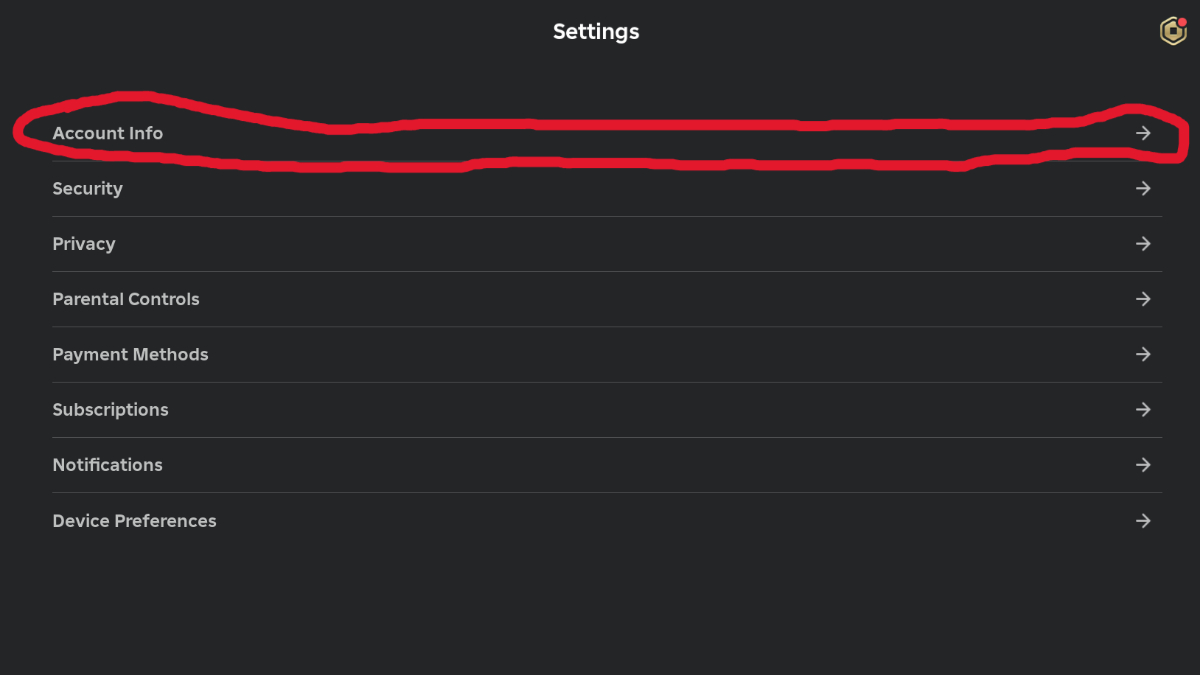
The Account Info menu containing age information for Roblox
Image Source: Roblox via The Nerd Stash

The process for changing your age on Roblox varies depending on how your account was set up. If a parent or guardian set up your Roblox account for you, you may not have access to your age settings. Due to Roblox‘s built-in safety features, if you’re under 13, there’s no way to change this feature without the assistance of a parent or guardian. Age-Up Potions won’t help. If you do have their assistance (or you’re of an appropriate age and just locked out by accident), here’s what you need to do:

  1. Launch Roblox
  2. Navigate to “More”
  3. Navigate to “Settings”
  4. Navigate to “Account Info” (pictured above)
  5. Navigate to “Personal” and then “Birthday”
  6. Click on the adjacent pen icon and update your birthday
  7. If the pen icon does not appear, click “Verify My Age” instead
  8. Complete the age verification process
Roblox: All 30 Present Locations in Pet Simulator 99
Related: Roblox: All 30 Present Locations in Pet Simulator 99

The verification process will enable you to authenticate your age using a government-issued ID (such as a driver’s license). This is a pretty standard security procedure, but don’t be afraid to reach out to Roblox‘s Support team if you have further questions. It always pays to be safe when entering personal information online. Once your age is verified, you shouldn’t have any further issues changing your age on Roblox. Now you can get back to fighting monsters and sailing the high seas.

Related Topics
Guide Roblox
Share. Facebook Twitter LinkedIn Reddit Email
Patrick Armstrong
  • Website

Artist and writer with a lifelong love of video games. Their favorite games include Dead by Daylight, Meet Your Maker, and Project Zomboid.

SUGGESTED READS

MindsEye Layoffs 2026
Gaming

Studio Behind GTA-like Game, MindsEye, Hit With More Layoffs, and Nobody is Surprised: ‘Shocked There’s Even a Janitor Working There’

Princess Peach Spin-Off Movie May Already Be in Development, Job Listing Suggests
Gaming

Princess Peach Spin-Off Movie May Already Be in Development, Job Listing Suggests

Xbox's New CEO Wants to Reconnect With the 'Community,' Yet Brings In More CoreAI Leaders
Gaming

Xbox’s New CEO Wants to Reconnect With the ‘Community,’ Yet Brings In More CoreAI Leaders

Diablo 4 Season 13 Tier List
Gaming

Class Tier List for Diablo 4 Season 13 (Best Classes for Endgame & Leveling)

Take-Two Boss Finally Explains Why GTA 6 Is Skipping PC at Launch: 'We'll See How It Works Out'
Gaming

Take-Two Boss Finally Explains Why GTA 6 Is Skipping PC at Launch: ‘We’ll See How It Works Out’

Rockstar Employee Review Claims 'Unrealistic' Crunch as GTA 6 Development Intensifies: 'Had to Work Till 3AM'
Gaming

Rockstar Employee Review Claims ‘Unrealistic’ Crunch as GTA 6 Development Intensifies: ‘Had to Work Till 3AM’

The Nerd Stash
Facebook X (Twitter) Instagram YouTube LinkedIn
  • About Us
  • Join Our Team
  • Meet the Team
  • Privacy Policy
  • DMCA Policy
  • Contact Us
  • Terms of Use
  • Sitemap
  • Editorial Guidelines
  • Advertising Policy
© 2026 The Nerd Stash. All Rights Reserved.

Type above and press Enter to search. Press Esc to cancel.