Close Menu
  • Gaming
    • Platforms
      • Nintendo
      • PC
      • PlayStation
      • Xbox
  • Entertainment
    • Movies
    • TV
    • Royals
  • Celebrity
    • Hollywood
  • Human Interest
  • Astrology
  • More
    • Reviews
Facebook X (Twitter) Instagram LinkedIn YouTube
  • About Us
  • Join Our Team
  • Meet the Team
  • Privacy Policy
  • DMCA Policy
  • Contact Us
  • Terms of Use
  • Sitemap
  • Editorial Guidelines
  • Advertising Policy
The Nerd Stash
  • Gaming
  • Celebrity
  • Hollywood
  • Human Interest
The Nerd Stash
Home»Gaming»How To Fix No Sound Driver on Roblox and Get the Beats Bumping Again

How To Fix No Sound Driver on Roblox and Get the Beats Bumping Again

Driving me crazy

Patrick ArmstrongBy Patrick ArmstrongNovember 20, 20242 Mins Read
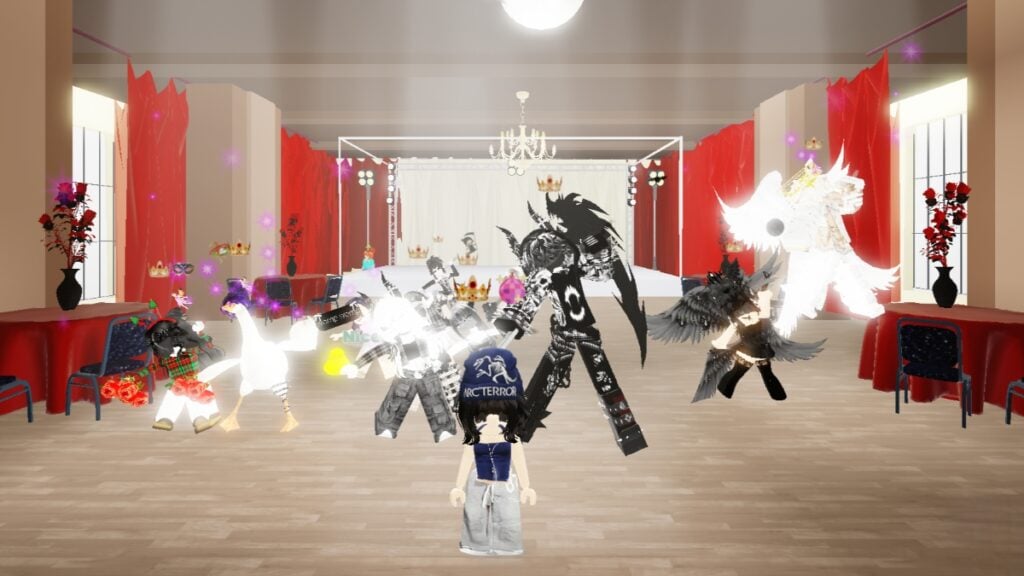
Players perform a synchronized dance together in Roblox
Image Source: 1MOTION via The Nerd Stash
This article is over 1 years old and may contain outdated information.

Broken sound drivers are a ticket to Silenceville. In some games, glitched or broken audio is a mere annoyance. In others, it means super stealthy enemies and no puzzle cues, creating impossible situations. Driver issues are also common, so it’s wise to check for regular updates. Though the lack of tunes and SFX can ruin your day, there are a few ways to fix the problem. Because some methods involve installations and files, however, it’s a good idea to enlist some help with the process. Here’s how to fix the “no sound driver” problem on Roblox and cheer up your ears again.

Roblox No Sound Driver Solution
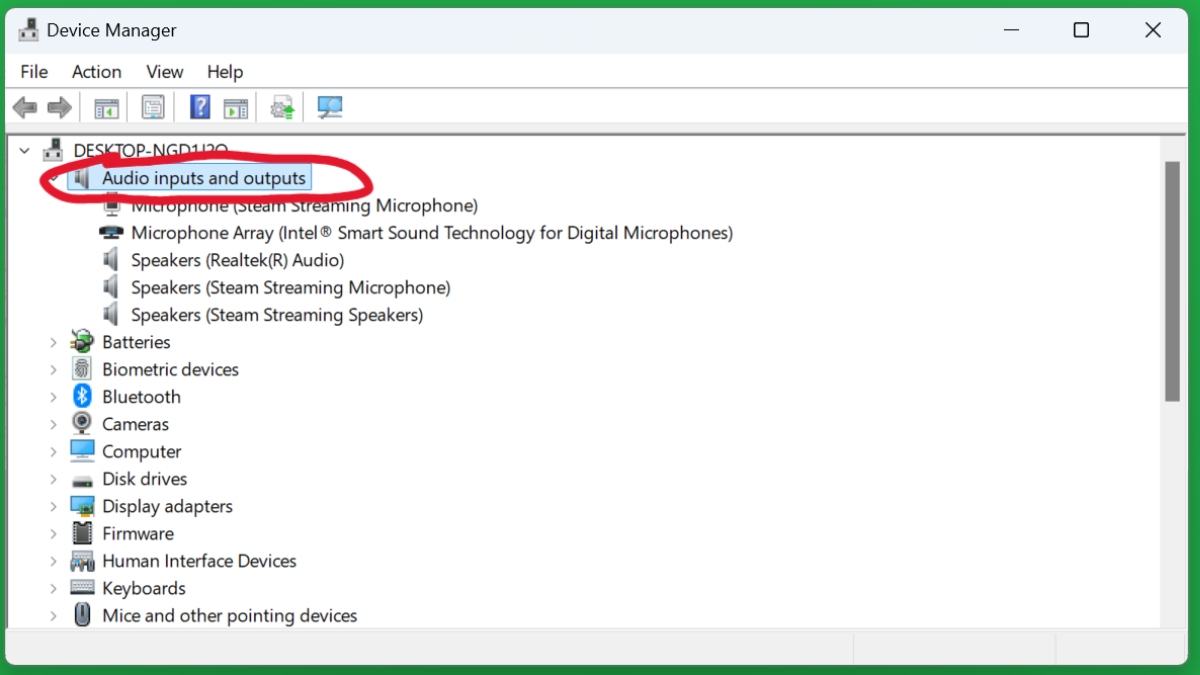
The Input and Output area in the Windows Device Manager
Image Source: Microsoft via The Nerd Stash

Before you can worry about improving your Roblox experience, you need to get it working. There are several ways to do this, and none are difficult. That said, always double-check what you’re doing before deleting or altering a file or app. Thankfully, none of these fixes are likely to cause issues by themselves. If the “no sound driver” problem persists in Roblox, don’t be afraid to try all of the following:

  1. Method 1: Search your apps for “Volume Mixer” (aka “Sound Mixer”)
  2. Click “Reset”
  3. Method 2: Search your apps for “Device Manager”
  4. Navigate to “Audio Inputs and Outputs”
  5. Right-click on each input and output option and select “Update Driver”
  6. Method 3: Search your PC for “Add or Remove Programs”
  7. Uninstall Voice Recorder and restart your PC
How To Listen to Spotify and Get Your Jam on While Playing Roblox
Related: How To Listen to Spotify and Get Your Jam on While Playing Roblox

If none of the previous solutions work, you may need to uninstall and reinstall Roblox. It’s annoying, but it’s also a reliable way to fix behind-the-scenes issues that your PC might be having with the platform. The huge variety of games and experiences on Roblox means that something’s bound to go wrong eventually. With these methods, you can get the tunes flowing again. Let every Robloxian street ring with music now!

Related Topics
Guide Roblox
Share. Facebook Twitter LinkedIn Reddit Email
Patrick Armstrong
  • Website

Artist and writer with a lifelong love of video games. Their favorite games include Dead by Daylight, Meet Your Maker, and Project Zomboid.

SUGGESTED READS

COD Modern Warfare 4 Free Open Beta Starts This August, Nintendo Switch 2 Included
Gaming

COD Modern Warfare 4 Free Open Beta Starts This August, Nintendo Switch 2 Included

All Wandering Merchant Locations in Palworld
Gaming

All Wandering Merchant Locations in Palworld

How to find Pure Quartz in Palworld 1.0
Gaming

Where To Find Pure Quartz in Palworld

Sicario Writer's Call of Duty Movie To Adapt 'Modern Warfare' Universe, Confirmed Paramount
Gaming

Sicario Writer’s Call of Duty Movie To Adapt ‘Modern Warfare’ Universe, Confirmed Paramount

Fatal Fury City of the Wolves Rick Strowd Hands-on Impressions
Gaming

Fatal Fury: City of the Wolves Rick Strowd Hands-On Impressions – A Strong Start

Zenless Zone Zero Version 3.1 Anniversary
Gaming

Zenless Zone Zero Celebrates Its 2-Year Milestone With Free S-Rank Agents and a Crossover Announcement

The Nerd Stash
Facebook X (Twitter) Instagram YouTube LinkedIn
  • About Us
  • Join Our Team
  • Meet the Team
  • Privacy Policy
  • DMCA Policy
  • Contact Us
  • Terms of Use
  • Sitemap
  • Editorial Guidelines
  • Advertising Policy
© 2026 The Nerd Stash. All Rights Reserved.

Type above and press Enter to search. Press Esc to cancel.