
Close Menu
  • Gaming
    • Platforms
      • Nintendo
      • PC
      • PlayStation
      • Xbox
  • Entertainment
    • Movies
    • TV
    • Royals
  • Celebrity
    • Hollywood
  • Human Interest
  • Astrology
  • More
    • Anime
    • Reviews
Facebook X (Twitter) Instagram LinkedIn YouTube
  • About Us
  • Join Our Team
  • Meet the Team
  • Privacy Policy
  • DMCA Policy
  • Contact Us
  • Terms of Use
  • Sitemap
  • Editorial Guidelines
  • Advertising Policy
The Nerd Stash
  • Gaming
  • Celebrity
  • Hollywood
  • Human Interest
The Nerd Stash
Home»Gaming»How to Update The Rosters in MLB The Show 23

How to Update The Rosters in MLB The Show 23

Want to know how to update the rosters in MLB The Show 23? Every year, sports simulators become more and more realistic, providing loyal fans…

Artur NovichenkoBy Artur NovichenkoMarch 29, 20232 Mins Read
how-to-update-the-rosters-in-mlb-the-show-23
This article is over 3 years old and may contain outdated information.

Want to know how to update the rosters in MLB The Show 23? Every year, sports simulators become more and more realistic, providing loyal fans with excellent gameplay, relevant teams, and dozens of convenient mechanics. MLB The Show 23 is no exception, as you can play as the most actual rosters in the world league, considering injuries, replacing, and player sales. But unlike the world league, in MLB The Show 23, you can update the rosters at your discretion, and today we will tell you how to do it.

MLB The Show 23: Update The Rosters
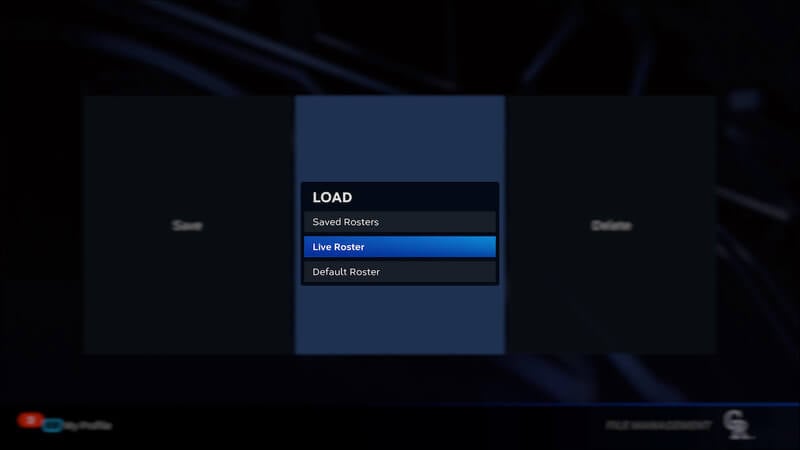
Image via Attackfthefanboy

First, it is worth noting that you will have the most relevant teams in the world league by purchasing and launching MLB The Show 23 for the first time. But on subsequent game launches, the rosters will not be updated automatically. In the world league, there are a lot of replacing, player sales, or unexpected injuries that affect the current squads. Luckily, you can update the rosters in MLB The Show 23 to the most relevant, and here’s how:

  • Launch MLB The Show 23 and go to Main Menu.
  • Next, go to the Settings menu by clicking on the gear in the upper right corner of the screen.
  • Select the File Management tab and click Load.
  • Select the Live Roster option and then confirm your choice.
  • Teams will be updated to the most actual lists.

In addition, you can save old player rosters and then load them again. You must Save the commands in the File Management menu. And if you want to return to the previous squads, follow all the above steps, and at the end, instead of Live Roster, select Saved Roster.

But if you’re not happy with the lists of players, MLB The Show 23 lets you create your rosters:

  • Launch MLB The Show 23 and go to Main Menu.
  • Go to the Create tab by clicking on the Pencil.
  • Next, select the Roster Control tab.
  • Select the team whose lists you want to update.
  • After you have completed the settings, save the roster and enjoy the game.

MLB The Show 23 is available on Nintendo Switch, PlayStation, and Xbox consoles.

Related Topics
Guide MLB The Show 23
Share. Facebook Twitter LinkedIn Reddit Email
Artur Novichenko
  • Website

Artur is a copywriter and SEO specialist, as well as a small business owner. In his free time, he loves to play computer games and is glad that he was able to connect his professional career with his hobby.

SUGGESTED READS

Vampire Survivors Developer Goes Wild With Over 15 New Games, Expands to Japan and Italy: 'Profit Is Not a Priority'
Gaming

Vampire Survivors Developer Goes Wild With Over 15 New Projects, Expands to Japan and Italy: ‘Profit Is Not a Priority’

Gaming

The Expanse: Osiris Reborn Is Owlcats Most Ambitious Leap Yet ‘A stunning jump forward’

World of Tanks HEAT Closed Beta Preview
Features

World of Tanks HEAT Hands-On Preview – Faster, Flashier, and Just as Tactical

Where to Find the Secret Fall Shop in Roblox Adopt Me
Gaming

Where to Find the Secret Fall Shop in Roblox Adopt Me

Diablo 4 Lord of Hatred Review
10
Features

Diablo 4: Lord of Hatred Review – Breaking the Cycle

Shuhei Yoshida Says He Was Fired From Playstation Studios for Saying 'No' to Jim Ryan: 'He Asked For Ridiculous Things'
Gaming

Shuhei Yoshida Says He Was Fired From Playstation Studios for Saying ‘No’ to Jim Ryan: ‘He Asked For Ridiculous Things’

The Nerd Stash
Facebook X (Twitter) Instagram YouTube LinkedIn
  • About Us
  • Join Our Team
  • Meet the Team
  • Privacy Policy
  • DMCA Policy
  • Contact Us
  • Terms of Use
  • Sitemap
  • Editorial Guidelines
  • Advertising Policy
© 2026 The Nerd Stash. All Rights Reserved.

Type above and press Enter to search. Press Esc to cancel.