Close Menu
  • Gaming
    • Platforms
      • Nintendo
      • PC
      • PlayStation
      • Xbox
  • Entertainment
    • Movies
    • TV
    • Royals
  • Celebrity
    • Hollywood
  • Human Interest
  • Astrology
  • More
    • Anime
    • Reviews
Facebook X (Twitter) Instagram LinkedIn YouTube
  • About Us
  • Join Our Team
  • Meet the Team
  • Privacy Policy
  • DMCA Policy
  • Contact Us
  • Terms of Use
  • Sitemap
  • Editorial Guidelines
  • Advertising Policy
The Nerd Stash
  • Gaming
  • Celebrity
  • Hollywood
  • Human Interest
The Nerd Stash
Home»Gaming»Where Does Content Warning Save Videos? Explained

Where Does Content Warning Save Videos? Explained

Look back at what you’ve done!

Nat CollazoBy Nat CollazoApril 3, 20242 Mins Read
Where Does Content Warning Save Videos? Explained
Image Source: Skog, Zorro, Wilnyl, Philip, and thePetHen via The Nerd Stash
This article is over 2 years old and may contain outdated information.

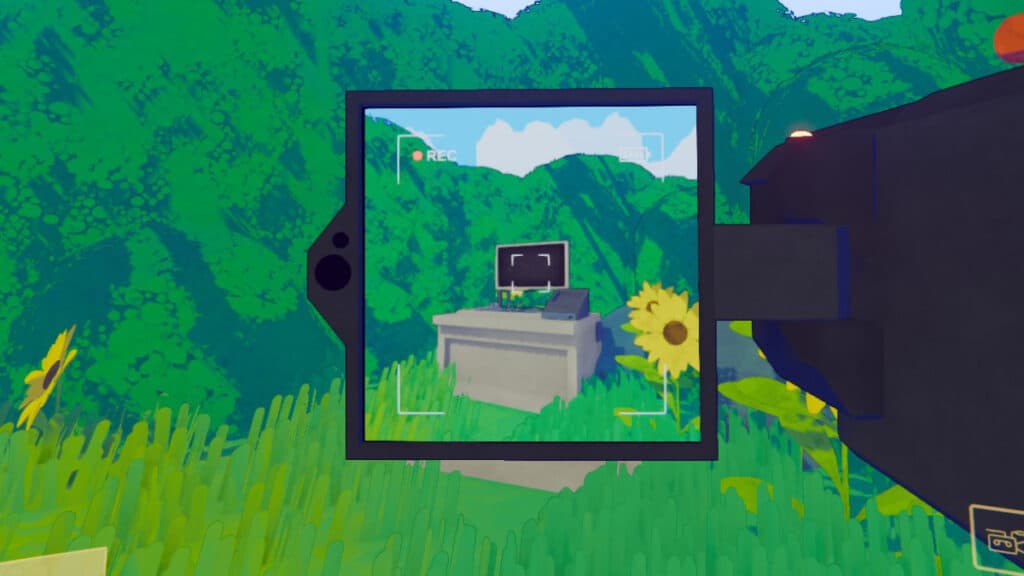
Normally, when you upload a video to the web, you can save it to a local device and keep it forever and ever. The videos you can save in Content Warning might be a little different, on account of the fact that they normally depict terrifying creatures. Nonetheless, you can still save those videos and show them off to your friends outside of the game. This is also great for keeping videos that might not have uploaded correctly into the video encoder when you came back from the Old World.

How To Save Videos in Content Warning

Where Does Content Warning Save Videos? Explained
Image Source: The Nerd Stash

All of your footage gets recorded onto your PC in Content Warning. Yes, ALL OF IT. The folder where you can find everything is hidden deep within your Program Files. However, you can also press F3 after you’ve recorded something on the camera while in-game to bring up that folder specifically. If you’re trying to find it without having to open the game, follow these instructions carefully.

  1. Open your File Explorer and locate the This PC selection.
  2. Select the Windows (C:) option.
  3. Open the Users folder.
  4. Select the folder that is named after whatever you named your PC.
  5. Open the AppData folder.
  6. Open the Local folder.
  7. Open the Temp folder.
  8. Open the rec folder.

All of the videos that you took will be located there with a folder that also has every individual frame of the footage. Any footage that you previously took will also be located in that same folder. You’re more than welcome to delete them if so needed. The videos and photos are really there for your own convenience if you want to upload it to social media or even show off to your friends that you were able to survive.

Related:

Content Warning Starter Guide: Beginners Tips & Tricks

Content Warning is available to play on PC.
Related Topics
Content Warning Guide
Share. Facebook Twitter LinkedIn Reddit Email
Nat Collazo
  • Website
  • X (Twitter)
  • Instagram

I am a game journalist and guide writer with ten years of experience as well as the CEO/ Founder of Frowns Marketing, a marketing company that caters to indie games, tabletop games, and board games to help developers get more wishlists, backers, and players!

SUGGESTED READS

Path of Exiles 2 Build Planner Guide
Gaming

How To Use the Build Planner in Path of Exile 2

Adopt Me Kicks Off Summer With Journey to Summer Camp Update, Here's All The New Week 1 Pets & Rewards
Gaming

Roblox Adopt Me Launches Journey to Summer Camp Update, Here’s All the Week 1 Pets & Rewards

LEGO Batman Legacy of the Dark Knight PC Review
9
Gaming

LEGO Batman: Legacy of the Dark Knight Review – A Hero Rises

Call of Duty: Modern Warfare 4 Launching This October on Next-Gen Consoles & Switch 2, But Not Game Pass
Gaming

Call of Duty: Modern Warfare 4 Launching This October on Next-Gen Consoles & Switch 2, But Not Game Pass

Hideo Kojima Teams Up With Prada for an AI Film, And Fans Aren't Happy: 'Beyond Incredibly Disappointing'
Gaming

Hideo Kojima Teams Up With Prada for an AI Film, And Fans Aren’t Happy: ‘Beyond Incredibly Disappointing’

The Witcher 3 Songs of the Past expansion
Gaming

A Witcher 3 Leak Just Forced CD Projekt Red to Announce a Brand-New Expansion: Songs of the Past

The Nerd Stash
Facebook X (Twitter) Instagram YouTube LinkedIn
  • About Us
  • Join Our Team
  • Meet the Team
  • Privacy Policy
  • DMCA Policy
  • Contact Us
  • Terms of Use
  • Sitemap
  • Editorial Guidelines
  • Advertising Policy
© 2026 The Nerd Stash. All Rights Reserved.

Type above and press Enter to search. Press Esc to cancel.