Close Menu
  • Gaming
    • Game Guides
    • Codes
    • Game News
    • Game Previews
    • Game Reviews
    • Game Features
    • Game Lists
    • Platforms
      • Nintendo
      • PC
      • PlayStation
      • Xbox
      • Mobile
  • Entertainment
    • Movies
    • Movie Features
    • Movie Reviews
    • TV
    • Reality TV
    • Royals
  • Celebrity
  • Human Interest
  • Astrology
  • Videos
  • More
    • Anime
    • Lists
    • Podcasts
    • Reviews
Facebook X (Twitter) Instagram LinkedIn YouTube
  • About Us
  • Join Our Team
  • Meet the Team
  • Privacy Policy
  • DMCA Policy
  • Contact Us
  • Terms of Use
  • Sitemap
  • Editorial Guidelines
  • Advertising Policy
The Nerd Stash
  • Gaming
  • Celebrity
  • Human Interest
  • Videos
The Nerd Stash
Home»Game Guides»How to Open and Use the Map In Starfield

How to Open and Use the Map In Starfield

Being able to open and use the map in any game is essential to ensuring not only where you’re going, but what’s available for you…

Nat CollazoBy Nat CollazoAugust 31, 20233 Mins Read
Image Source: Bethesda via The Nerd Stash
This article is over 2 years old and may contain outdated information.

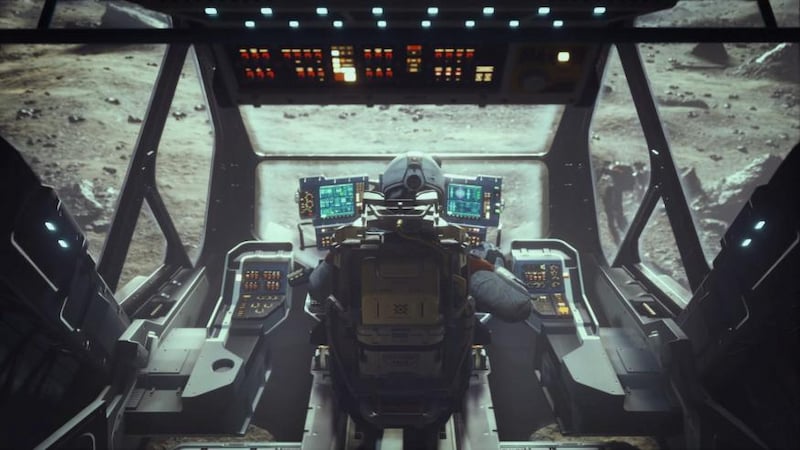
Being able to open and use the map in any game is essential to ensuring not only where you’re going, but what’s available for you to explore in any given area. This is especially so in Bethesda games. With the size of Starfield’s maps on any given planet. Being able to use a map is more than essential. If you are a little bit unsure of how to open and use the map in Starfield, then keep reading on for more information that can help you out!

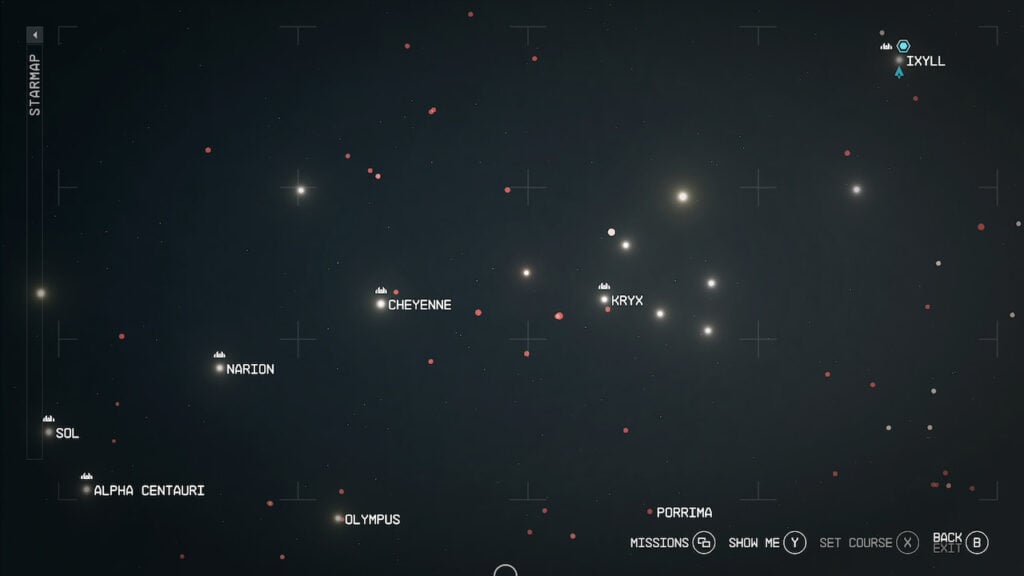
How to Open and Use the Starmap
How to Open and Use the Map In Starfield
Image Source: Bethesda

To actually open up the Starmap in Starfield, you’ll want to select the view button on your Xbox controller or the L button on your keyboard. We’ve also outlined everything else that you can do within the Starmap down below for both PC and Xbox:

  • Show Me
    • V button on the keyboard or Y button on the Xbox controller.
  • Select
    • Left mouse button on the keyboard or the A button on the Xbox controller.
  • Zoom In
    • Mouse Wheel Up on the keyboard or the RT button on the Xbox controller.
  • Zoom Out
    • Mouse Wheel Down on the keyboard or the LT button on the Xbox controller.
  • Open Resource View
    • R button on the keyboard or the LB button on the Xbox controller.
  • Pan Up
    • W button or Up on the keyboard or D-Pad Up on the Xbox controller.
  • Pan Down
    • S button or Down on the keyboard or D-Pad Down on the Xbox controller.
  • Pan Left
    • A button or Left on the keyboard or D-Pad Left on the Xbox controller.
  • Pan Right
    • D button or Right on the keyboard or D-Pad Right on the Xbox controller.

How to Open and Use the Surface Map in Starfield

To open the Surface Map in Starfield, you will want to press the G button on your keyboard or the RB button on your Xbox controller. On the Surface Map, you’ll be able to see exactly what is on the surface of the planet you are currently on. If you want to fast travel to your ship, you will want to press the Y button on your Xbox controller or the R button on your keyboard. At that point, you should have everything you need to open and use the map in Starfield. You can always refer back to this guide if you have any questions.

Related:

5 Things Starfield Needs To Live Up to the Hype

Starfield is coming out September 6th for PC, Xbox Series X/S.
Related Topics
Guide Starfield
Share. Facebook Twitter LinkedIn Reddit Email
Nat Collazo
  • Website
  • X (Twitter)
  • Instagram

I am a game journalist and guide writer with ten years of experience as well as the CEO/ Founder of Frowns Marketing, a marketing company that caters to indie games, tabletop games, and board games to help developers get more wishlists, backers, and players!

SUGGESTED READS

Astra Malorum Zombies easter egg song
Game Guides

Where To Find Astra Malorum Easter Egg Song In Black Ops 7 Zombies

Path of Exile 2 The Last of the Druids Update Preview
Features

One Of the Most Unique Druid Archetypes Is Ready to Land on Path of Exile 2: The Last of the Druids

Avatar TLA Fans Are Finally Getting the Open-World Game They've Been Waiting For: 'We Got Avatar's Creed Before GTA 6'
Game News

Avatar TLA Fans Are Finally Getting the Open-World Game They’ve Been Waiting For: ‘We Got Avatar’s Creed Before GTA 6’

Best Augments in Black Ops 7 Zombies
Game Guides

Best Augments You Need To Fully Research In Call of Duty: Black Ops 7 Zombies

All Steps in the Destiny 2 Renegades Campaign
Game Guides

How To Complete the Renegades Campaign in Destiny 2

Octopath Traveler 0 PS5 Review
9
Features

Octopath Traveler 0 Review – A Tale of Revenge and Restoration

Trending
Astra Malorum Zombies easter egg song

Where To Find Astra Malorum Easter Egg Song In Black Ops 7 Zombies

Path of Exile 2 The Last of the Druids Update Preview

One Of the Most Unique Druid Archetypes Is Ready to Land on Path of Exile 2: The Last of the Druids

Avatar TLA Fans Are Finally Getting the Open-World Game They've Been Waiting For: 'We Got Avatar's Creed Before GTA 6'

Avatar TLA Fans Are Finally Getting the Open-World Game They’ve Been Waiting For: ‘We Got Avatar’s Creed Before GTA 6’

Best Augments in Black Ops 7 Zombies

Best Augments You Need To Fully Research In Call of Duty: Black Ops 7 Zombies

The Nerd Stash
Facebook X (Twitter) Instagram YouTube LinkedIn
  • About Us
  • Join Our Team
  • Meet the Team
  • Privacy Policy
  • DMCA Policy
  • Contact Us
  • Terms of Use
  • Sitemap
  • Editorial Guidelines
  • Advertising Policy
© 2025 The Nerd Stash. All Rights Reserved.

Type above and press Enter to search. Press Esc to cancel.